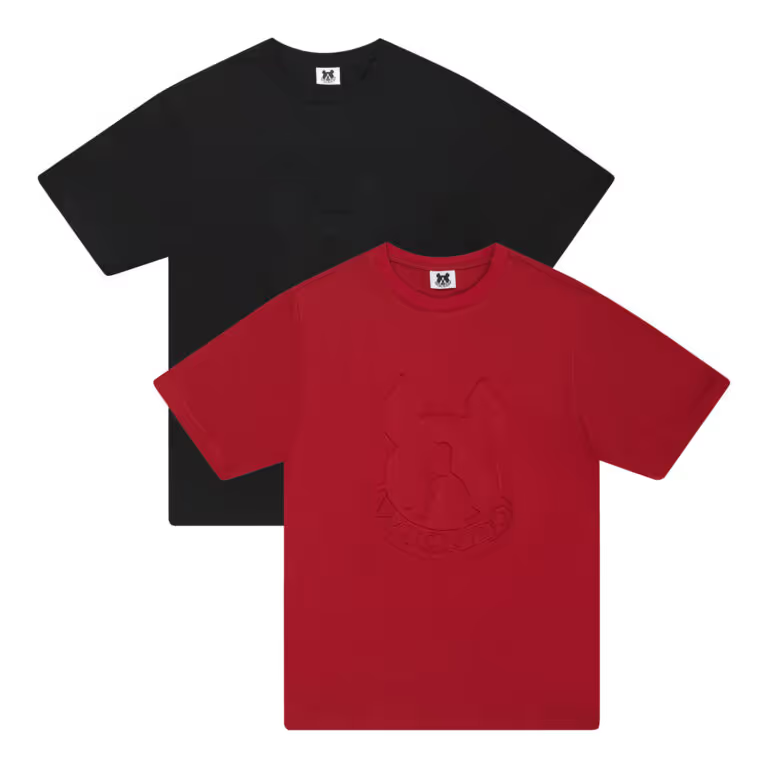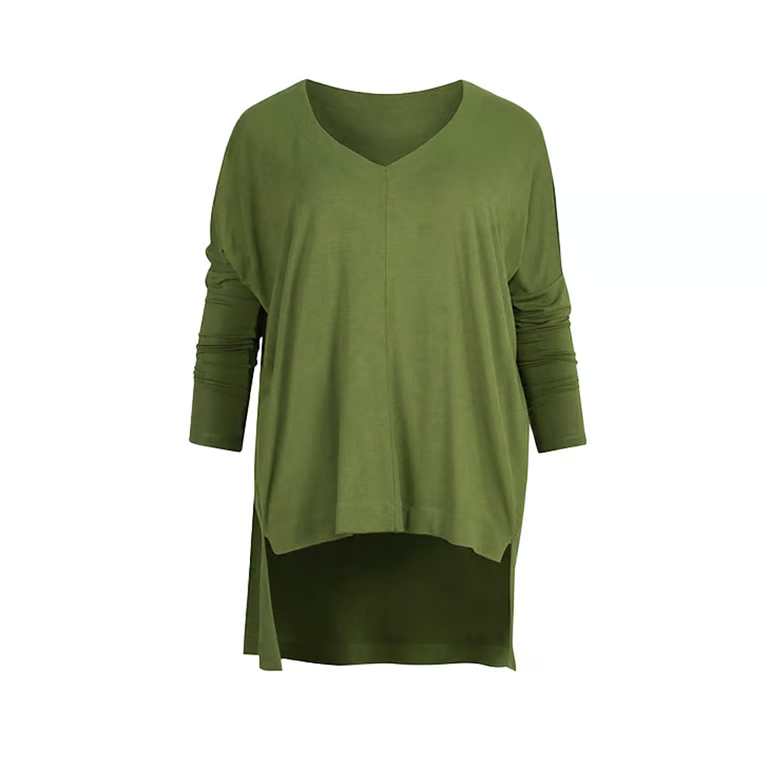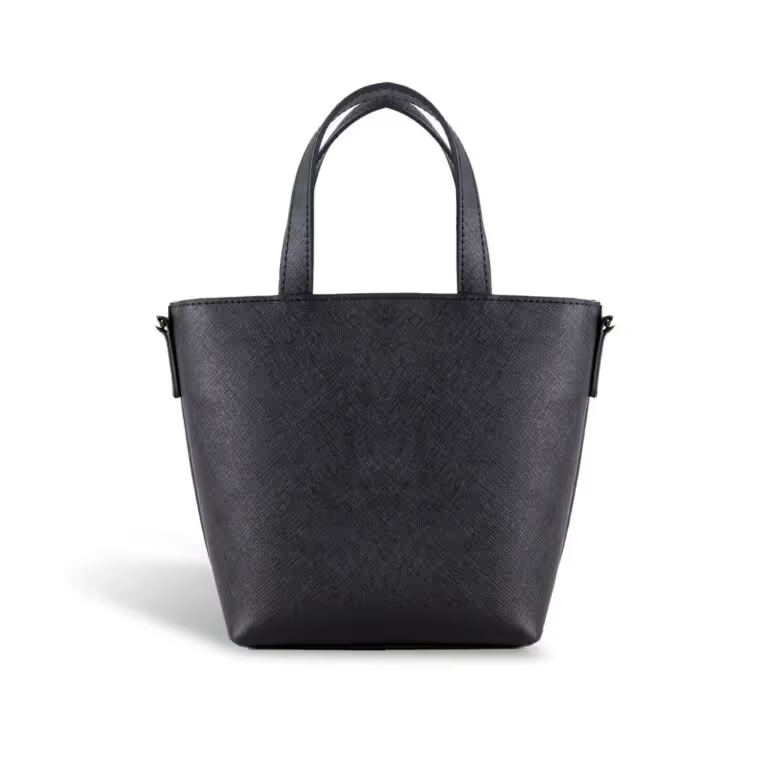
Almost white is not white. How to light and retouch a product onto a true #FFFFFF background, how to check it, and the image rules Google Shopping and Shopify set.
A plain white background is the most common product photograph there is. It keeps the attention on the product, makes a whole range look consistent, and is what shopping feeds and most marketplaces expect for a main image. But "white" in a product photo means something precise: every pixel of the background is pure white, RGB 255, 255, 255, written #FFFFFF. This guide covers how to get there, how to check it, and the rules the platforms most brands sell on actually set.
Why almost white is not good enough
A background that is 97 percent white looks fine on its own. Put it on a web page, which is usually pure white itself, and it shows as a pale grey box around the product. Across a category page the problem multiplies: one product sits on a slightly warm white, the next on a slightly grey one, and the grid looks patchy even though every photo seemed fine on its own.
Two ways to get there
In camera
The cleanest way to a white background is to light it separately from the product:
- Shoot on a white sweep, such as seamless paper or a curved cyclorama wall, so there is no line where the floor meets the wall.
- Light the background with its own lights, set about one stop brighter than the light on the product. That takes the background to pure white without overexposing the product in front of it.
- Leave a few feet between the product and the background, so the bright background does not wrap around the product's edges and soften them.
- Light the product itself as you normally would, with large soft sources.
Pushing the background much brighter than that does not make it any whiter. It just spills light back onto the product, which washes out its edges and lowers the contrast.
In retouching
The other way is to cut the product out of its background in editing software and place it on pure white. It works with any background, but it lives or dies on the quality of the cut: rough edges, a halo of the old background, or lost detail in fur, fringing or fine straps are what make a photo look edited.
Most professional studios do both: light the background close to white so the edges are clean, then finish in retouching so every pixel is exactly #FFFFFF.
How to check it
Do not trust your eyes; a screen in a bright room makes off-white look white. Open the image in your editing software and sample the background with the color picker in several places, especially the corners and right beside the product. Every reading should be 255, 255, 255. A levels or threshold adjustment layer, used only to look and not saved, shows any off-white patches as dark areas you can see at a glance.
White and light products on white
A white sneaker or a cream shirt can disappear into a white background. Three things keep it visible:
- Expose for the product, not the background, so its own whites keep their texture.
- Place black cards just out of frame beside the product. They add a thin dark edge to its outline.
- Keep a soft shadow under the product. It grounds the product and separates it from the background without any change to the white around it.
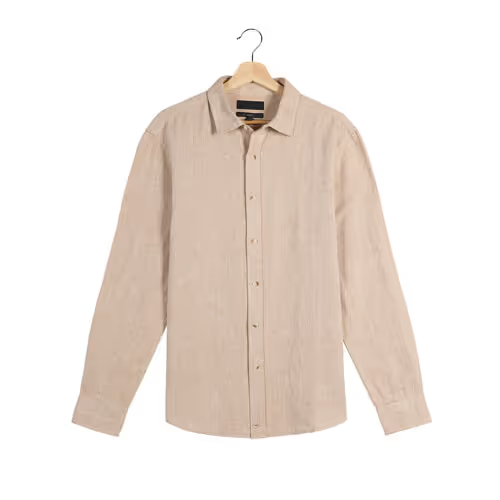
Shadows: choose one and keep it
There are three common choices. With no shadow, the product looks as if it floats. A natural shadow, kept from the shoot, looks realistic and grounds the product. An added shadow or reflection is drawn in during retouching for a uniform look. None is wrong, but mixing them across one range looks careless, so choose one per category and keep it.
What Google Shopping and Shopify ask for
Google Merchant Center
For Shopping ads and free listings, Google's image requirements say the product should fill no less than 75 percent and no more than 90 percent of the main image. There should be no borders, watermarks, added logos or promotional text, such as prices or calls to action, on the main image. Google recommends images of 1,500 by 1,500 pixels or larger, and from January 31, 2027 every product image needs to be at least 500 by 500 pixels. Files can be up to 16 MB and 64 megapixels.
For clothing and accessories, Google's best practices recommend a solid white or transparent background. They also suggest showing shoes, bags and accessories alone in the main image, with a model in the additional images, and showing clothing on a real person.
Shopify
Shopify sets no background rule; the white background is a choice for consistency. Its product media guidance says square images of 2048 by 2048 pixels usually display best, accepts images up to 5000 by 5000 pixels (25 megapixels) and under 20 MB, and recommends PNG first and JPEG second.
Marketplaces
Most large marketplaces require a pure white background for the main image and set their own minimum sizes and frame-fill rules, so check the seller rules wherever you list.
These rules change. The figures above were checked against each platform's help pages in October 2026.
Keep every image the same
A white background is only half of a consistent catalogue. The other half is framing: the product filling the same share of the frame, sitting in the same place, at the same pixel size, every time. Write those down as a spec and apply it to every image, so a product added next season lines up with the ones already on the page.
Common mistakes
- An off-white or grey background that looks white on screen but not on the page.
- Uneven white, with grey corners or a gradient where the light fell off.
- Rough cut-out edges or a halo of the old background.
- White and cream products that disappear into the background.
- A color cast on the product from light bouncing off a bright background.
- Products framed at different sizes, or too small in the frame for Google's 75 percent minimum.
Doing it yourself or using a studio
Getting one product onto clean white is straightforward with practice. Getting hundreds onto exactly the same white, at exactly the same framing, is where the time goes. Studio Nula photographs products on white and retouches every image onto a pure #FFFFFF background from $39 an image, sized and framed to the spec you save once. A transparent or colored background instead is $3 more an image. See white background product photography for examples and prices.
If you have not worked with us before, the first shot is free and nothing is owed on it. Ask for your free first shot.