The size Shopify recommends, the limits it enforces, why so many guides still quote 4472 pixels, and the settings that make a collection page line up.
Shopify recommends square product images of 2048 by 2048 pixels, and accepts files up to 5000 by 5000 pixels and 20 MB. Those two numbers are most of the answer. Whether a store actually looks good depends on what goes around them: every main image in the same shape, the product framed the same way in each, and files large enough for Shopify to resize down rather than up. This guide covers the limits, why so many guides quote a different maximum, and the settings that make a collection page line up.
What Shopify accepts
Shopify's product media guidance sets these rules for product images:
- Recommended: 2048 by 2048 pixels for square images.
- Largest: 5000 by 5000 pixels, or 25 megapixels.
- File size: under 20 MB.
- File types: PNG first and JPEG second, with TIFF, BMP, GIF, SVG, HEIC and WebP also accepted.
- How many: up to 250 images, videos and 3D models per product in total, a limit Shopify does not raise.
There is no minimum. Many guides repeat an 800 by 800 pixel minimum for image zoom, but Shopify's current help pages do not set one; whether zoom is offered, and how, is up to your theme.
Why other guides say 4472 by 4472
Many of the guides that rank for this search, some of them updated this year, give the maximum as 4472 by 4472 pixels and 20 megapixels. That number is a 20 megapixel limit drawn as a square: 4472 by 4472 is the largest square that stays under 20 million pixels. Shopify's own pages still disagree with each other. The product media page allows 25 megapixels, while the theme images page lists 20 megapixels and 20 MB as the upload limits.
In practice it does not matter. A 2048 by 2048 image is about 4.2 megapixels, well inside both limits, and so is any sensible portrait size.
Upload larger than the page shows
A product image on a collection page may appear only a few hundred pixels wide, so it is tempting to upload small files to keep the store fast. It does not help. Shopify keeps the file you upload, and your theme requests resized copies of it for each place it appears, from the cart thumbnail to the full-screen zoom. Shopify's developer documentation is clear that an image is never resized larger than the original. Upload at 800 pixels and the image stays soft on a large or high-resolution screen, with nothing more to show when a shopper zooms in.
Large uploads do not slow the store down. Shoppers receive copies sized for the slot, and Shopify detects which image formats each browser supports, such as WebP and AVIF, and chooses one for quality and file size. The upload sets the ceiling on quality; Shopify handles the delivery.
Square, portrait or landscape
Square is Shopify's recommendation because it is the safe choice: it sits well in almost any product grid. It is not a requirement. What Shopify does say is that main images need a consistent aspect ratio to display at the same size.
The first image on each product is its featured image, and Shopify shows it on collection pages, the home page, the cart and checkout. When those images come in different shapes, the grid steps up and down, or the theme crops some of them to fit. Many themes have a product card setting for this, with options such as square, portrait, or each image at its own shape. Choose one shape and shoot every main image to it.
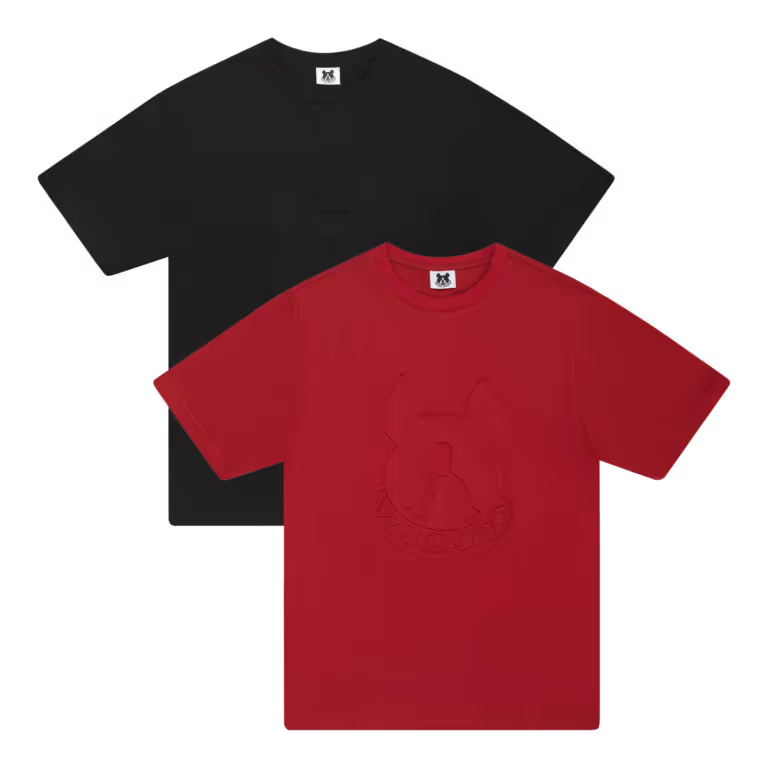
Clothing often suits portrait, because a standing garment or a model fills a tall frame better than a square one. If you choose portrait, pick one size, such as 2048 by 2560 pixels for a 4 by 5 frame, use it for every main image, and set the theme's product cards to match.
Frame every product the same way
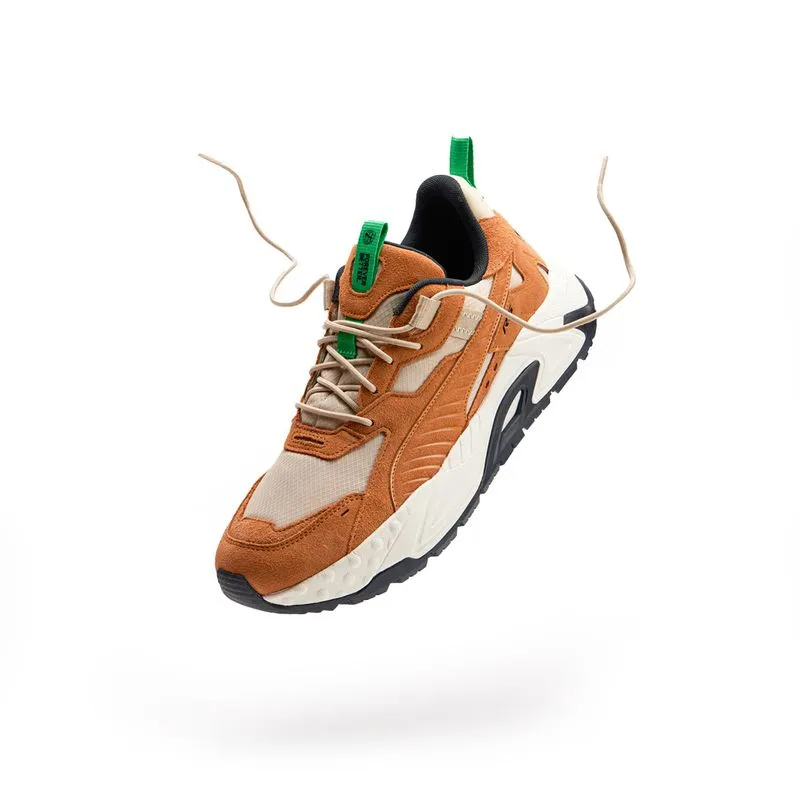
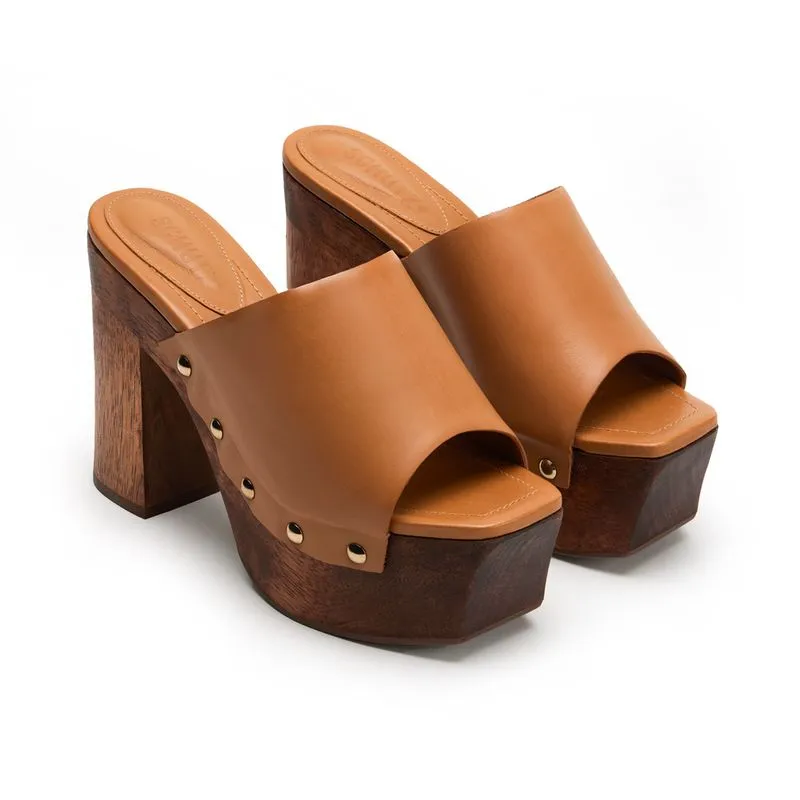
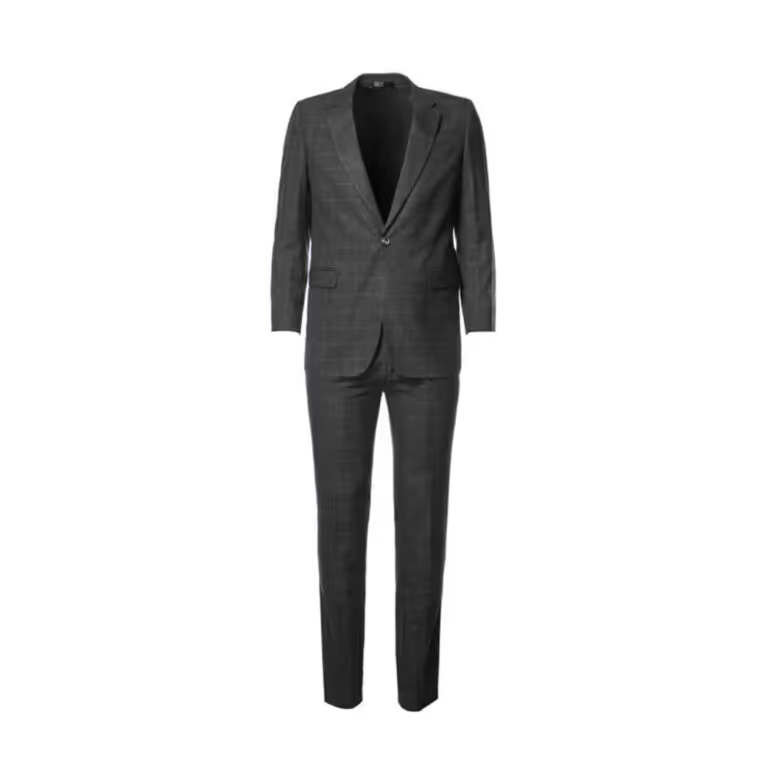
Matching sizes is half of an even grid. The other half is framing: each product filling the same share of the frame and sitting in the same place. A small product floating in a large square beside a large product filling its frame makes the small one look like an afterthought. Decide on a margin, for example 10 percent of the frame around the product's longest side, and keep it on every main image.
The background follows the same rule. Shopify sets no background requirement, but a mix of pure white, off-white and grey looks patchy on a page that is usually white itself. The guide to getting a pure white background covers how to light, retouch and check it.
JPEG or PNG
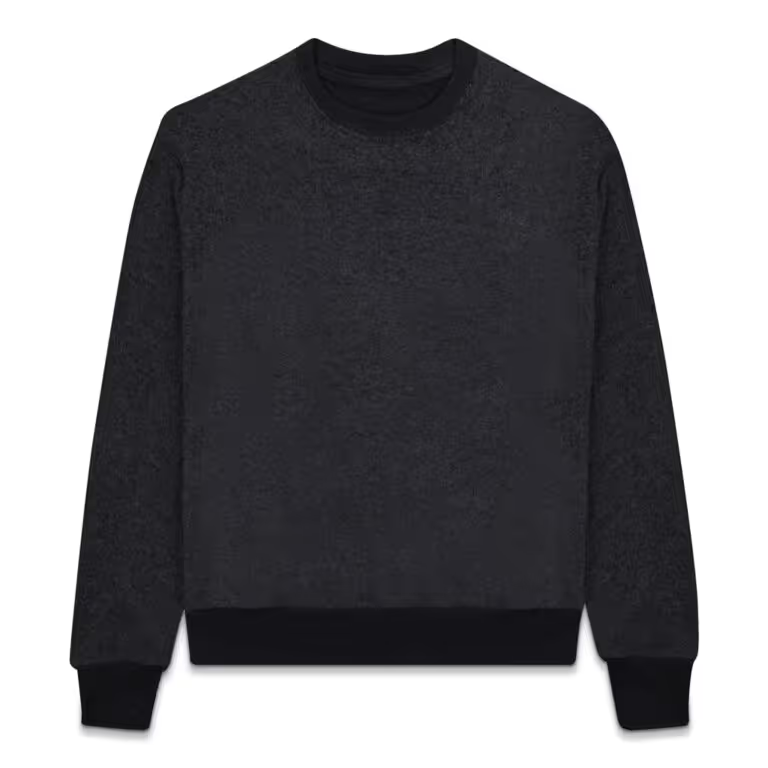
Shopify lists PNG as the best file type for most product images, with JPEG second. Either works. For photographs, a high-quality JPEG is usually much smaller than the same image saved as PNG and looks the same at normal viewing size; PNG is the better choice for graphics with flat color or text, and for images with a transparent background. Because Shopify picks the format each shopper downloads, the upload format matters less than staying under 20 MB. Export in sRGB, the color space the web is built on, so colors on the product page match the ones you approved.
Videos and 3D models
The same product media page sets the limits for the other media types:
- Video: MP4, MOV or WebM, up to 10 minutes, up to 4K (4096 by 2160 pixels) and up to 1 GB. Shopify converts every video to MP4 or HLS for playback.
- 3D models: GLB or USDZ, up to 500 MB. Files over 15 MB are optimized automatically.
Both count toward the 250-item limit, and neither can be used as a variant image. Video follows the same rule as photos: keep one shape across the store. A 360 spin or a short clip on a model sits beside the stills in the same product gallery.
Alt text and file names
Every product image can carry alt text: a short description that screen readers read aloud, that shows when the image fails to load, and that Shopify says can help search. Its alt text guidance allows up to 512 characters and recommends 125 or fewer. Describe the product and what this image shows: "Charcoal crewneck sweater laid flat, front" says far more than "sweater" or a string of keywords. Add it in the Shopify admin by opening the product and clicking the image.
Name the files the same way before uploading. A name like charcoal-crewneck-front.jpg describes the image; IMG_4821.jpg describes nothing.
Banners and other theme images
Shopify gives no fixed size for logos, banners or slideshows, because the right size depends on the theme and its version. Two rules hold everywhere. Keep text out of slideshow and background images, since sections crop them to fit each screen: wide images can lose their left and right edges, and tall ones their top and bottom. And set a focal point on any image where one part has to stay visible; Shopify keeps the focal point in frame however the theme crops.
Before you upload
- Every main image the same shape: square at 2048 by 2048 pixels, or one portrait size that the theme's product cards match.
- The product framed with the same margin in every main image.
- One background across the range, checked for pure white if white is the choice.
- JPEG or PNG in sRGB, under 20 MB each.
- Descriptive file names and alt text on every image.
- The featured image first, then the same order on every product, such as front, back, detail and on model.
The figures in this guide were checked against Shopify's help and developer pages in November 2026. Shopify changes them from time to time, so check the linked pages if anything here looks out of date.
One spec for every image
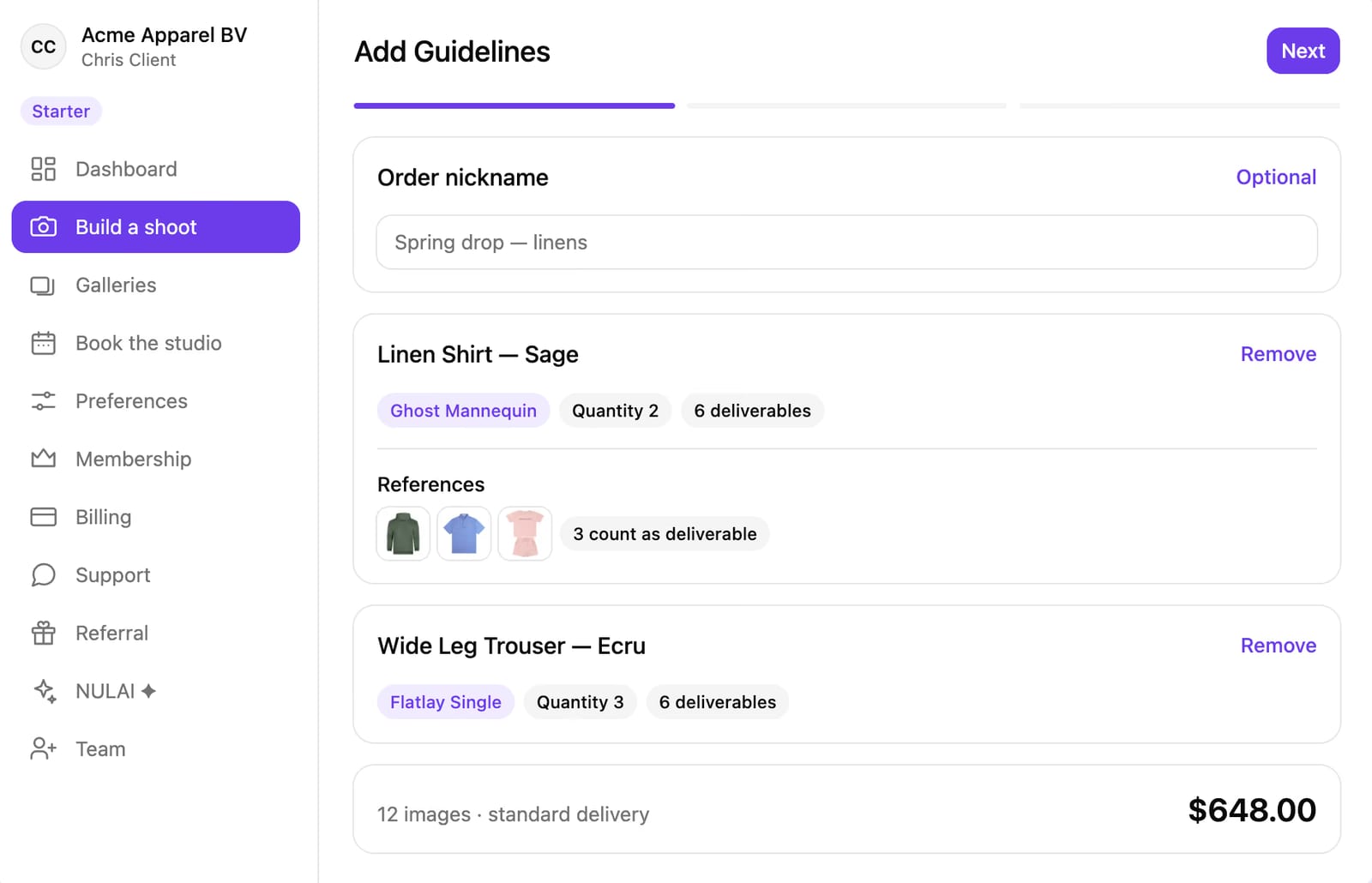
None of this is hard for one product. Across hundreds, with new styles every season, the work is keeping every image identical. At Studio Nula you save your store's image spec once in your dashboard, with its size, file format, background and margin, and every image is delivered to it. Flat lays start at $39 an image with styling and retouching included. JPEG and PNG cost nothing extra; TIFF, PSD or a background other than white adds $3 an image each. See ecommerce product photography for how a full listing set is shot and sized to your store.
If you have not worked with us before, the first shot is free and nothing is owed on it. Ask for your free first shot.